

How To Create Unity Account
Installing Unity and Creating a Project

The first thing to do is go to the Unity homepage and click the Get Started button.

After you have clicked the Get Started button, it will take you to Plans and Pricing. On here, click the Individual tab and click the Get Started button under Personal. That will take you to a page where you can begin your journey with Unity. Click the Start Here button, and you will be prompted to accept the terms to use Unity Personal and download Unity Hub Setup executable.
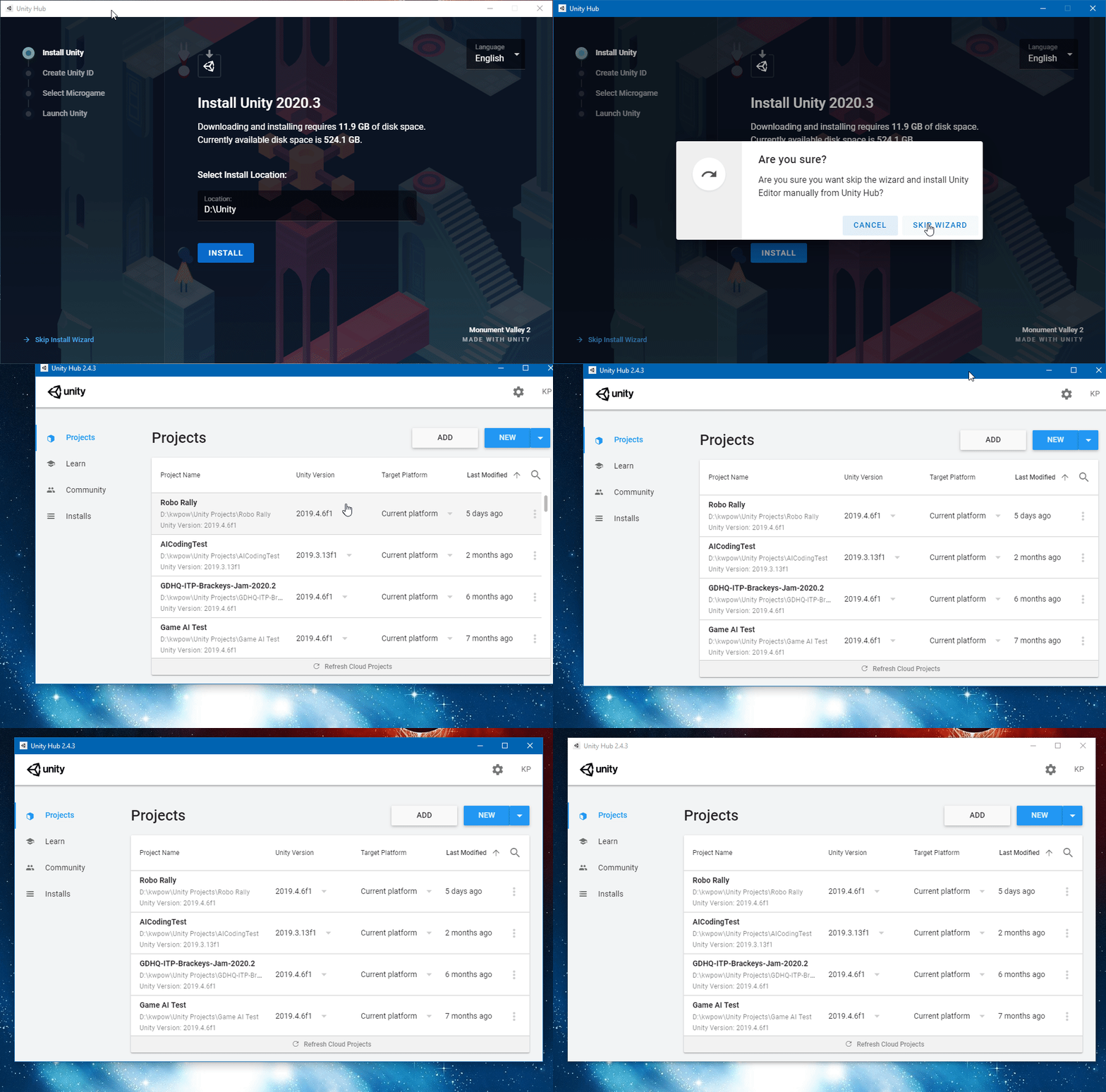
Once the download is complete, go to the location where you downloaded the executable and begin the installation process. For this article, I am going to skip the Setup Wizard. That will open up the base Unity Hub on the Projects tab.
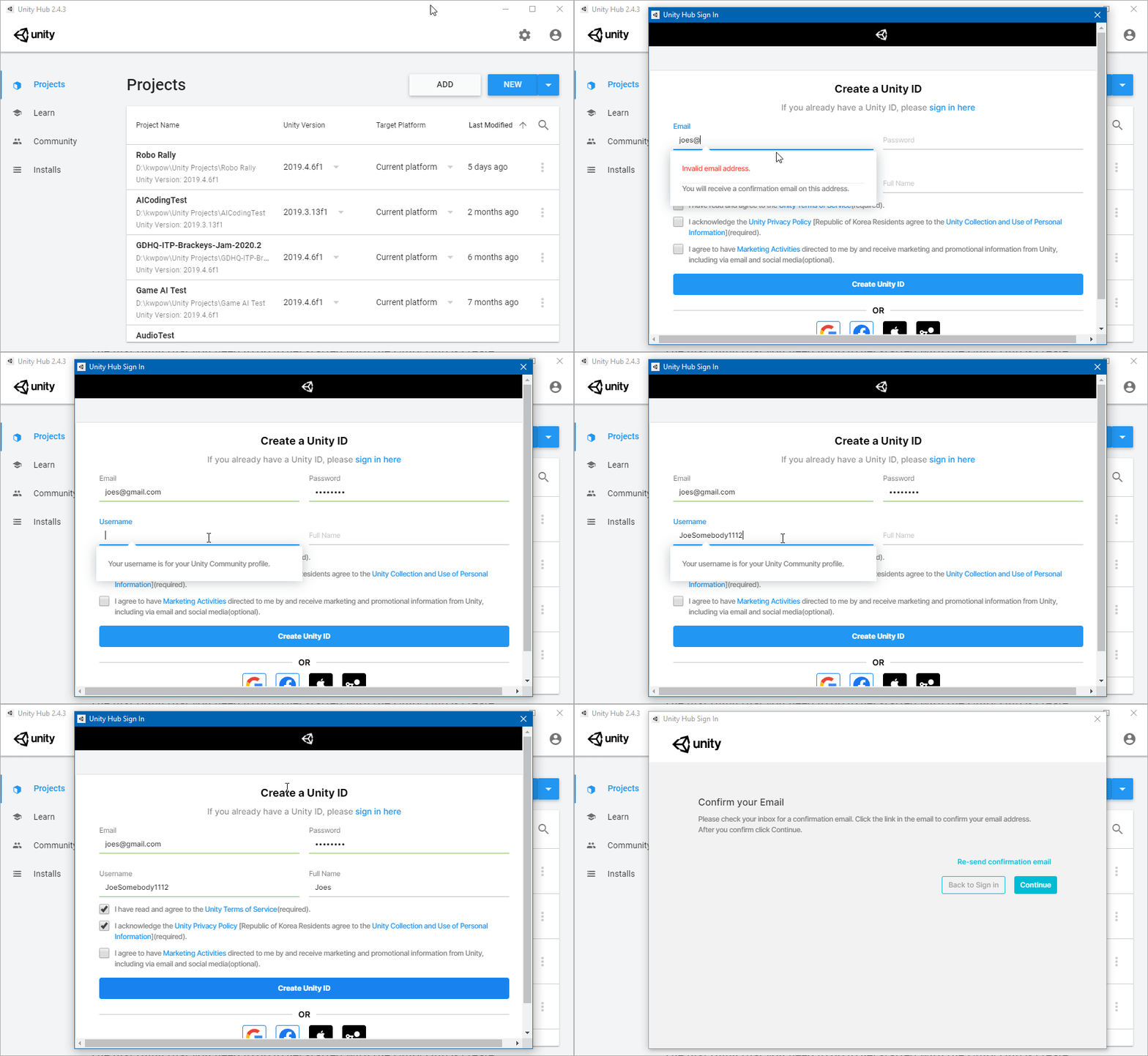
The first thing you need to do to get started with the Unity Hub is to create a Unity ID account. To do so, go to the upper left corner of the Unity Hub window and click on the icon of a person, then go down and click Sign in. That will open a new window, Unity Hub Sign-in. In this new window, under Sign in to your Unity ID, you will see 'If you don't have a Unity ID, please create one.' click on Create One. Enter the email, password, and username you would like to be associated with your Unity ID account. Then accept the terms and privacy policy and click Create Unity ID button.
That will send out a confirmation email to the address you entered. Go there and confirm your email address. Now come back to the Unity Hub Sign-in window and click the Continue button to sign in to your new Unity ID account. Now that you are signed into your new Unity ID account, the next step is to install a Unity engine version.
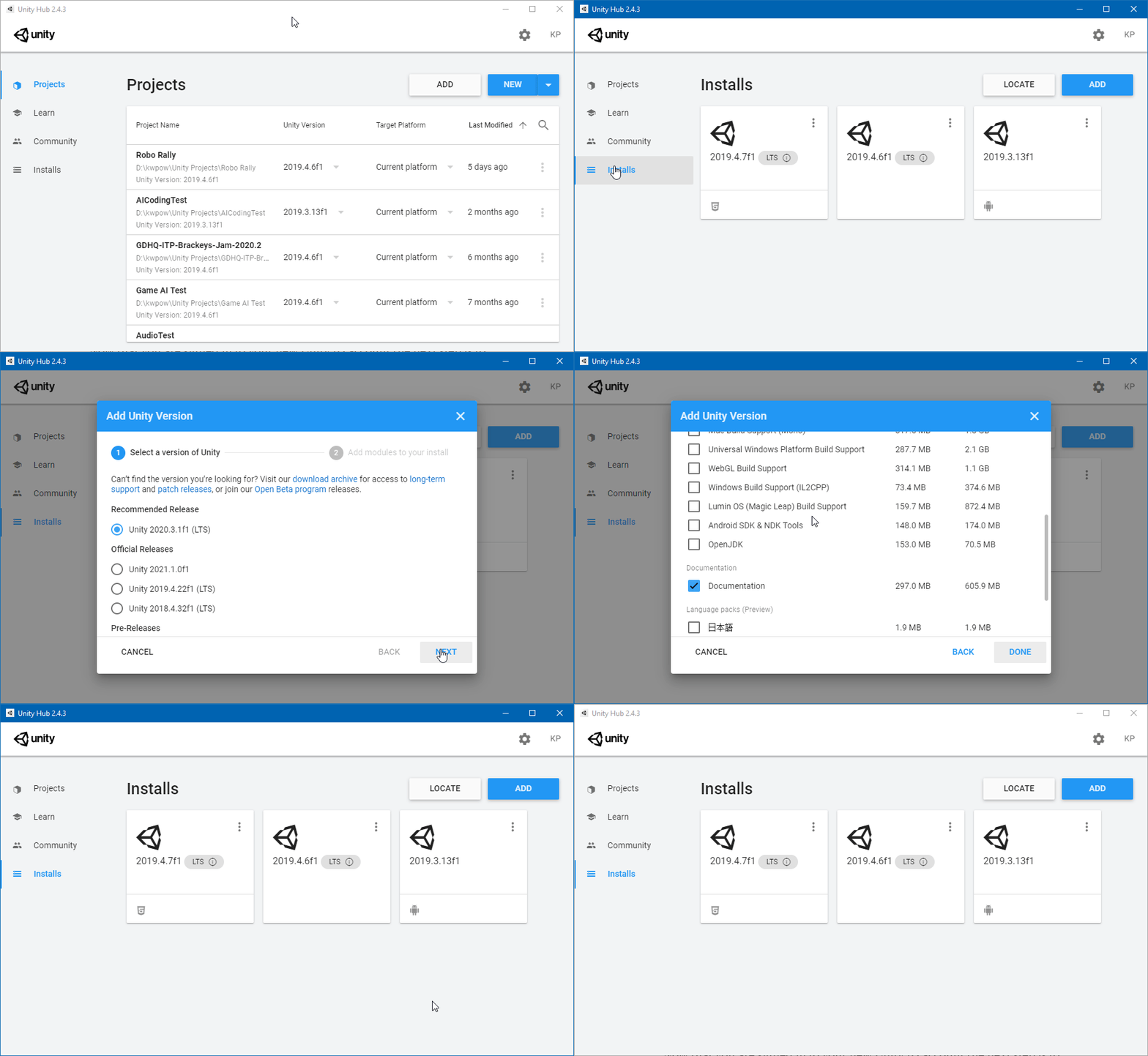
In the Unity Hub window, click on the Installs tab and click the Add button. That will open the Add Unity Version window, where you can select a version to install. I recommend starting with a Long Term Support (LTS) version since Unity will be stable and supported for an extended time. Once you have selected the version of Unity you want to install, click the Next button, which will take you to the next step of choosing which modules you wish to add to that version of Unity. You will only need to add modules if you plan to use this version of Unity to create programs for devices other than standalone Windows. You can always come back to add modules at a later time, so for now, click the Done button, and the download and installation will begin.
Once your installation has finished, it is time to start a new Unity Project. In the Unity Hub window on the left side, click the Projects tab. Now click on the New button, which will open a new window. In this new window, you can choose what template you want to use for your Unity Project, what you wish the project name to be, and what location you want the Project folder to be placed. Once you have made your selections click the Create button, you will begin creating your Unity Project! That can take a while, depending on your computer and what template you selected.

Now that you have a brand new Unity Project to play around in, continue following me to expand on it as I document what I learn.
How To Create Unity Account
Source: https://levelup.gitconnected.com/installing-unity-and-starting-game-development-a9cd98b03005
Posted by: presleynant1976.blogspot.com
0 Response to "How To Create Unity Account"
Post a Comment